Local Integration
Local integration refers to POS applications communicating directly with Tapro applications through Taplink SDK to implement localized payment processing. This document introduces how to start local integration development.
Solution Description: For connection principles and mode comparison of local integration, please refer to Solution Overview.
Development Preparation
1. Obtain Development Credentials
Before starting integration, you need to obtain necessary development credentials first. For detailed steps, please refer to Pre-Development Preparation Documentation.
Brief process:
- Contact SUNBAY to obtain Copilot account
- Log in to Copilot portal to create payment application
- Obtain application credentials (including sandbox and production environments):
- App ID: Application unique identifier
- Merchant ID: Merchant ID
- Secret Key: Key for signature verification
2. Configure Tapro Application (Based on Connection Mode)
Before starting integration, ensure that the payment terminal has Tapro application installed.
Configure Tapro application according to your chosen connection mode:
App-to-App Mode
No need to configure Taplink Configuration. Taplink SDK will automatically detect and connect to Tapro application on the same device.
Cable Mode (Physical Cable Connection)
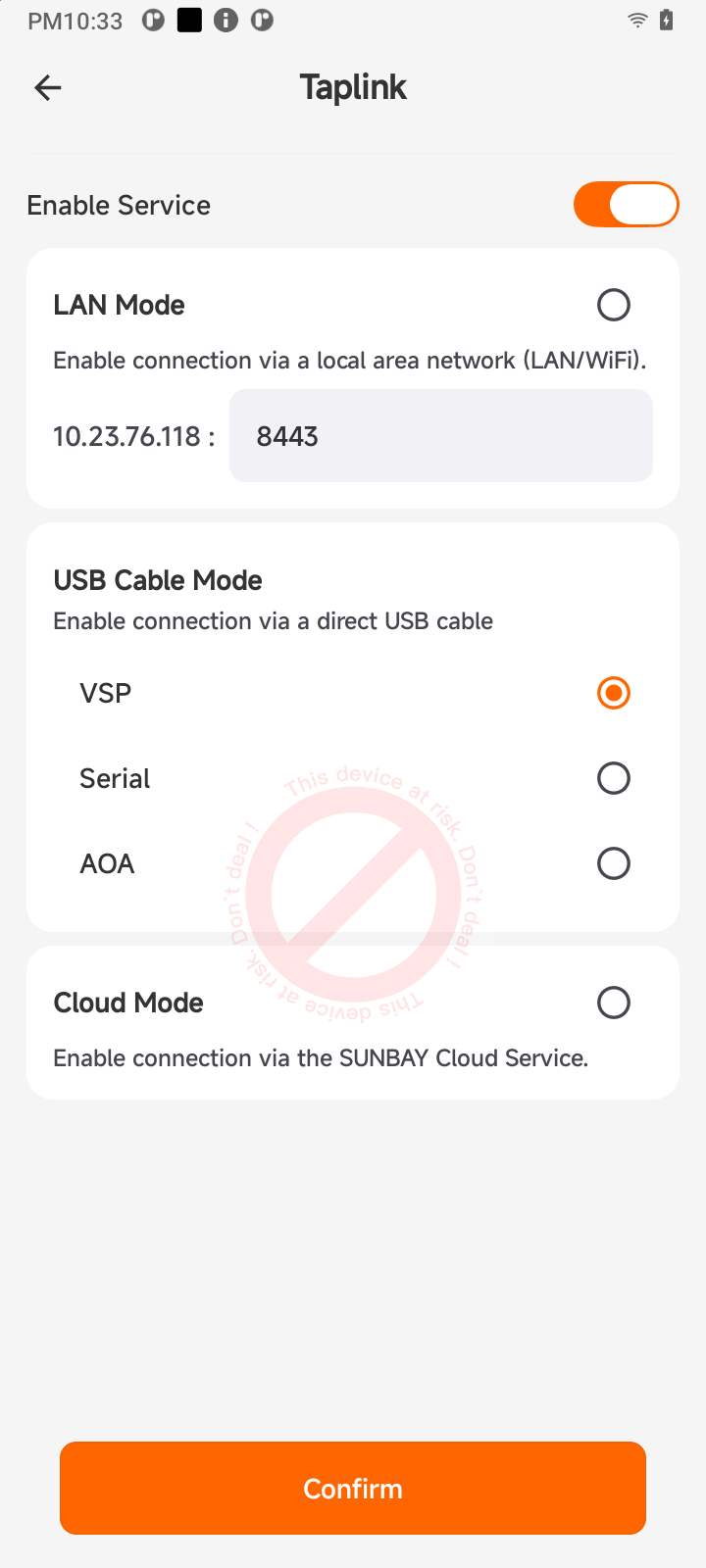
- Open Tapro application and enter settings page
- Enable Taplink Configuration switch
- Select the corresponding connection method in Cable option:
- VSP: Virtual Serial Port
- RS232: Physical Serial Port
- AOA: Android Open Accessory
LAN Mode (Local Area Network Connection)
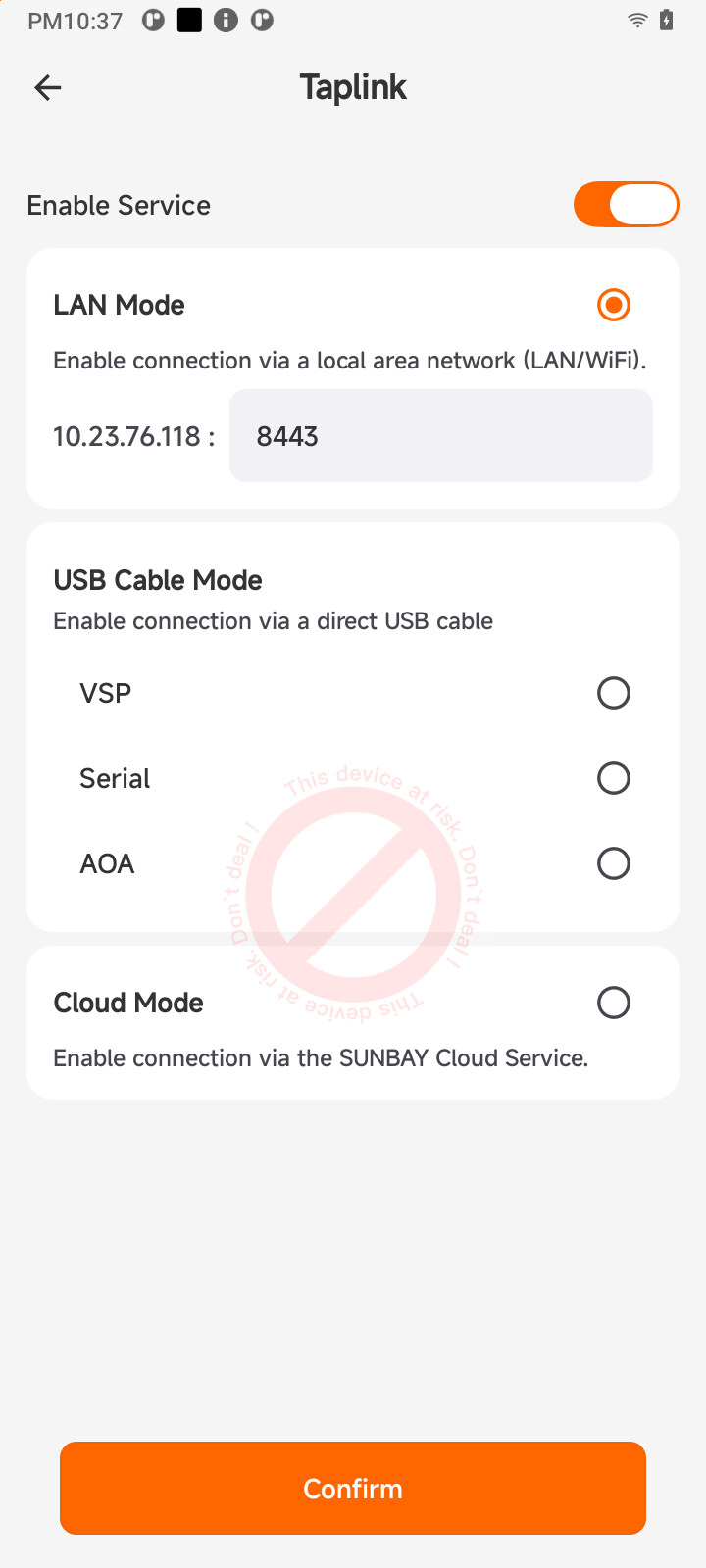
- Open Tapro application and enter settings page
- Enable Taplink Configuration switch
- Enable LAN switch (Local Area Network connection)
Connection Mode Selection Guide:
- App-to-App: POS application and Tapro application on the same Android device, simplest and fastest
- Cable: Requires physical cable connection, high stability, suitable for fixed deployment scenarios
- LAN: Connect via local area network, high flexibility, suitable for scenarios where POS and terminal are separated
3. Download SDK
Before starting integration, you need to obtain necessary development credentials first. For detailed steps, please refer to Pre-Development Preparation Documentation.
Brief process:
- Contact SUNBAY to obtain Copilot account
- Log in to Copilot portal to create payment application
- Obtain application credentials (including sandbox and production environments):
- App ID: Application unique identifier
- Merchant ID: Merchant ID
- Secret Key: Key for signature verification
3. Download SDK
Visit SDK Download Page to download Taplink SDK (supports Android, .NET, Java and other platforms).
4. Configure Permissions
Apply for required transaction permissions for your application in Copilot portal:
| Transaction Type | Required Permission | Description |
|---|---|---|
| Sale | payment.sale | Sale transaction permission |
| Pre-authorization | payment.auth | Pre-authorization and pre-authorization completion permission |
| Refund | payment.refund | Refund transaction permission |
| Void | payment.void | Void transaction permission |
| Tip Adjustment | payment.tip_adjust | Tip adjustment permission |
| Query | payment.query | Transaction query permission |
| Batch Close | payment.batch_close | Batch close permission |
Important: Some APIs require completing sandbox environment test acceptance to obtain production environment usage permission. For detailed process, please refer to Sandbox Environment Testing Documentation.
Integration Process
Basic Steps
Regardless of which integration mode is chosen, the basic integration process is consistent:
-
Initialize SDK
- Configure App ID, Merchant ID, Secret Key
- Specify connection mode (APP_TO_APP / CABLE / LAN)
-
Establish Connection
- App-to-App: Automatically detect and connect to Tapro application
- Cable mode: Detect physical connection and establish communication
- LAN mode: Enter IP and port (first time) or automatically connect (subsequent)
-
Initiate Transaction
- Create transaction request (sale, refund, void, etc.)
- Call SDK to execute transaction
- Process transaction results and callbacks
-
Disconnect
- Disconnect when application exits
- Release resources
Security Authentication
Important: All authentication and security verification are automatically handled by Taplink SDK, developers only need to provide correct credentials.
SDK automatically handles the following security mechanisms:
- Connection Authentication: Use App ID and Secret Key for identity verification
- Message Signing: HMAC-SHA256 signature verification to prevent data tampering
- Transport Encryption: LAN mode uses TLS 1.2+ encrypted transmission
- Permission Verification: Check if application has corresponding transaction permissions
Developers need to note:
- Never hardcode
secretKeyin code - Use secure methods to store credentials (such as Android Keystore)
- Regularly rotate credentials in production environment
- Ensure application has correctly configured required permissions
Error Code Reference
Error Code Range Description
Taplink SDK uses a segmented error code design, with each range corresponding to different error types for quick problem identification.
Note: Error code 100 indicates operation success and is a success response code, not an error code. Other codes 20x-39x are error codes.
Error Code Segments
| Error Code Range | Error Type | Description |
|---|---|---|
| 100 | Success Response | Operation successful (not an error code) |
| 20x | Initialization Error | SDK initialization related issues |
| 21x | Connection State/Failure | Connection state management and connection failures |
| 23x | Local Mode Connection Failure | Same-device APP_TO_APP mode connection issues |
| 24x | LAN Mode Connection Failure | LAN mode network connection issues |
| 25x | USB Mode Connection Failure | CABLE mode cable connection issues |
| 30x | Transaction Processing Error | Transaction parameters, sending, status and other issues |
Complete Error Code List
| Error Code | Error Category | Error Description | Solution | transactionRequestId Retry Rule |
|---|---|---|---|---|
| 100 | Success | Operation successful | No action needed | - |
| 201 | Initialization Error | SDK not initialized | Call TaplinkSDK.init() to initialize SDK | - |
| 202 | Initialization Error | SDK service exception | Restart application | - |
| 203 | Initialization Error | Tapro initialization failed | Reconnect | - |
| 211 | Connection State Error | Connection already exists, no need to reconnect | No need to reconnect | - |
| 212 | Connection State Error | Device not connected | Call connect() first to establish connection | - |
| 213 | Connection State Error | Connection disconnected | Call connect() again | - |
| 214 | Connection Failure | Unable to establish connection | Check network or device status and retry | - |
| 221 | Connection Failure | Authentication failed | Check if appId and secretKey are correct | - |
| 231 | Local Mode Connection Failure | Tapro app not installed | Install Tapro app | - |
| 232 | Local Mode Connection Failure | Unable to connect to Tapro | Restart Tapro app or device | - |
| 241 | LAN Mode Connection Failure | Unable to connect to server | Check network connection and firewall settings | - |
| 242 | LAN Mode Connection Failure | Unable to discover server | Manually enter server IP address | - |
| 251 | USB Mode Connection Failure | Cable not connected | Connect USB cable or serial cable | - |
| 252 | USB Mode Connection Failure | USB permission denied | Authorize app to use USB device | - |
| 253 | USB Mode Connection Failure | USB connection timeout | Reconnect USB cable | - |
| 254 | USB Mode Connection Failure | USB protocol not supported | Use auto-detect mode or contact technical support | - |
| 255 | USB Mode Connection Failure | Serial device not ready | Reconnect serial cable | - |
| 301 | Transaction Processing Error | Missing required parameters | Check required parameters like amount, transaction type | Can retry |
| 302 | Transaction Processing Error | Data format error | Check if parameter format meets API documentation requirements | Can retry |
| 303 | Transaction Processing Error | Unsupported transaction type | Check transaction type parameter (SALE/REFUND/VOID etc.) | Can retry |
| 304 | Transaction Processing Error | Request send failed | Check network connection and retry | Can retry |
| 305 | Transaction Processing Error | Transaction in progress | Wait for current transaction to complete | Can retry |
| 306 | Transaction Processing Error | Response timeout | Query transaction status first, confirm before retry | Query first |
| 307 | Transaction Processing Error | Transaction failed | Check parameters and retry with new ID | Must use new ID |
| 308 | Transaction Processing Error | Transaction processing | Query transaction status first, confirm before retry | Query first |
| 309 | Transaction Processing Error | Transaction terminated | Do not retry | Do not retry |
| 310 | Transaction Processing Error | Insufficient balance | Notify user of insufficient balance, retry with new ID | Must use new ID |
| 311 | Transaction Processing Error | Incorrect password | Prompt user to re-enter password, retry with new ID | Must use new ID |
Retry Rule Legend:
- Can retry = Can retry with the same transactionRequestId (safe)
- Query first = Need to query transaction status before deciding
- Must use new ID = Must use a new transactionRequestId (prevent duplicate charges)
- Do not retry = Transaction terminated, should not retry
- - = Not applicable (connection errors or non-transaction errors, transactionRequestId not involved)
Error Code Quick Reference
Initialization Issues
| Error Code | Issue | Quick Solution |
|---|---|---|
| 201 | SDK not initialized | Call TaplinkSDK.init() |
| 202 | SDK service exception | Restart application |
| 203 | Tapro initialization failed | Reconnect |
Connection Issues
| Error Code | Issue | Quick Solution |
|---|---|---|
| 211-213 | Connection state error | Check connection state, call connect() again |
| 214, 221 | Connection failure | Check network/device/authentication parameters |
| 231-232 | Local mode connection failure | Install Tapro app or restart device |
| 241-242 | LAN mode connection failure | Check network and IP address |
| 251-255 | USB mode connection failure | Check cable connection and USB permissions |
Transaction Issues
| Error Code | Issue | Quick Solution | Retry Rule |
|---|---|---|---|
| 301-305 | Parameter/send error | Check parameters and network | ✅ Can use same ID |
| 306 | Response timeout | Query status first | ⚠️ Query then decide |
| 307-311, 399 | Transaction failed | Review details and reinitiate | ❌ Must use new ID |
Best Practices
1. Idempotency Handling
Use unique transactionRequestId for each transaction to ensure transaction idempotency.
Important: Except for query interfaces which can be retried, other transaction interfaces (sale, refund, void, etc.) cannot be retried to avoid duplicate payments. If transaction times out or fails, should first call query interface to confirm transaction status, then decide on subsequent operations.
2. Timeout Handling
- Set reasonable connection timeout (recommended 10 seconds)
- After transaction timeout, do not retry directly, first call query interface to confirm transaction status
- Decide whether to initiate new transaction based on query results (using new
transactionRequestId)
3. Error Handling
- Catch and handle all exceptions
- Provide clear user prompts
- Record error logs for easy troubleshooting
4. Log Recording
- Enable detailed logs in development environment
- Disable detailed logs in production environment
- Record key business operations
Complete Sample Project
For complete sample project code, please visit GitHub repository: taplink-sdk-android-demo
This sample project includes:
- Complete SDK integration example
- Implementation of various transaction types (sale, refund, void, pre-authorization, etc.)
- Connection management and error handling
- UI interaction example
- Best practice reference